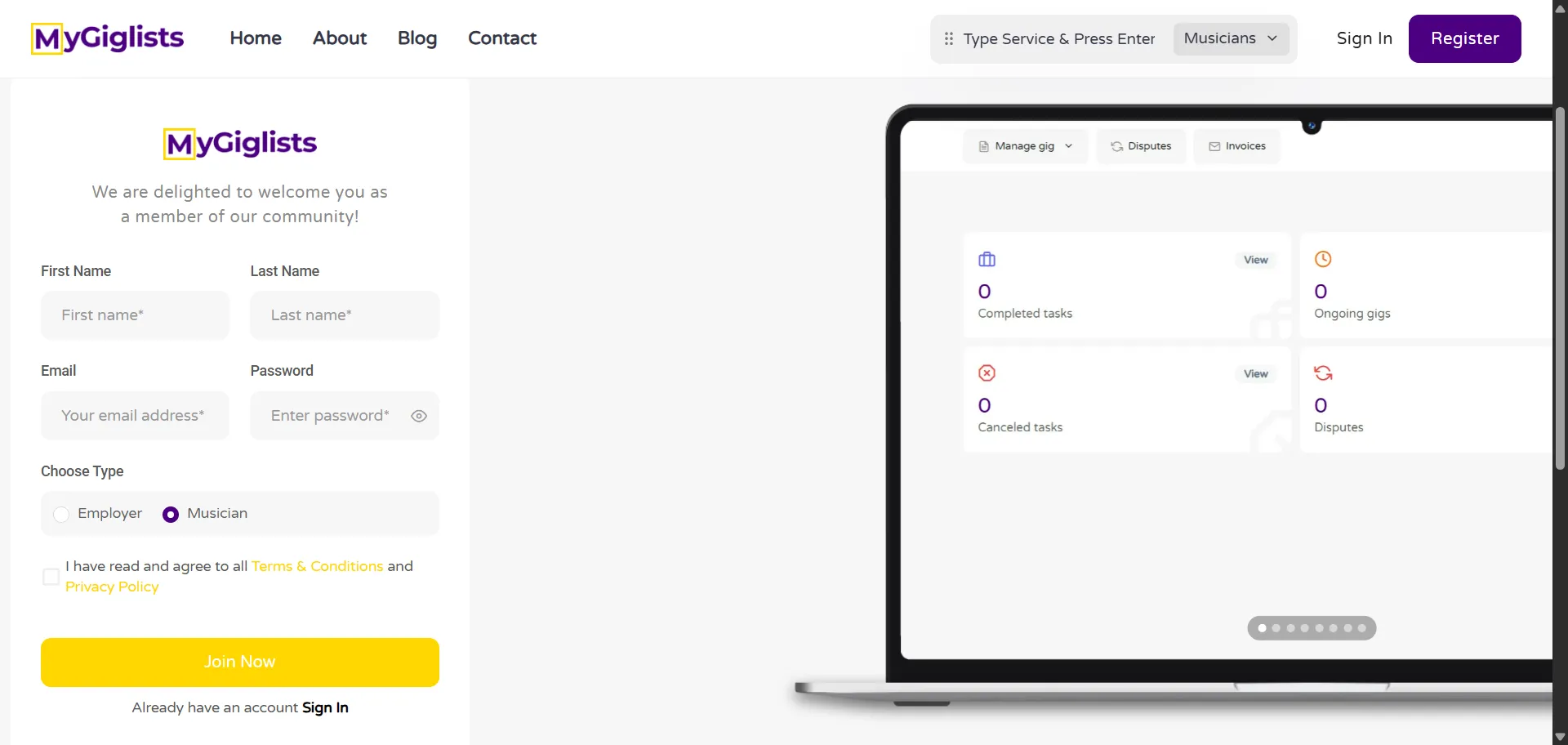
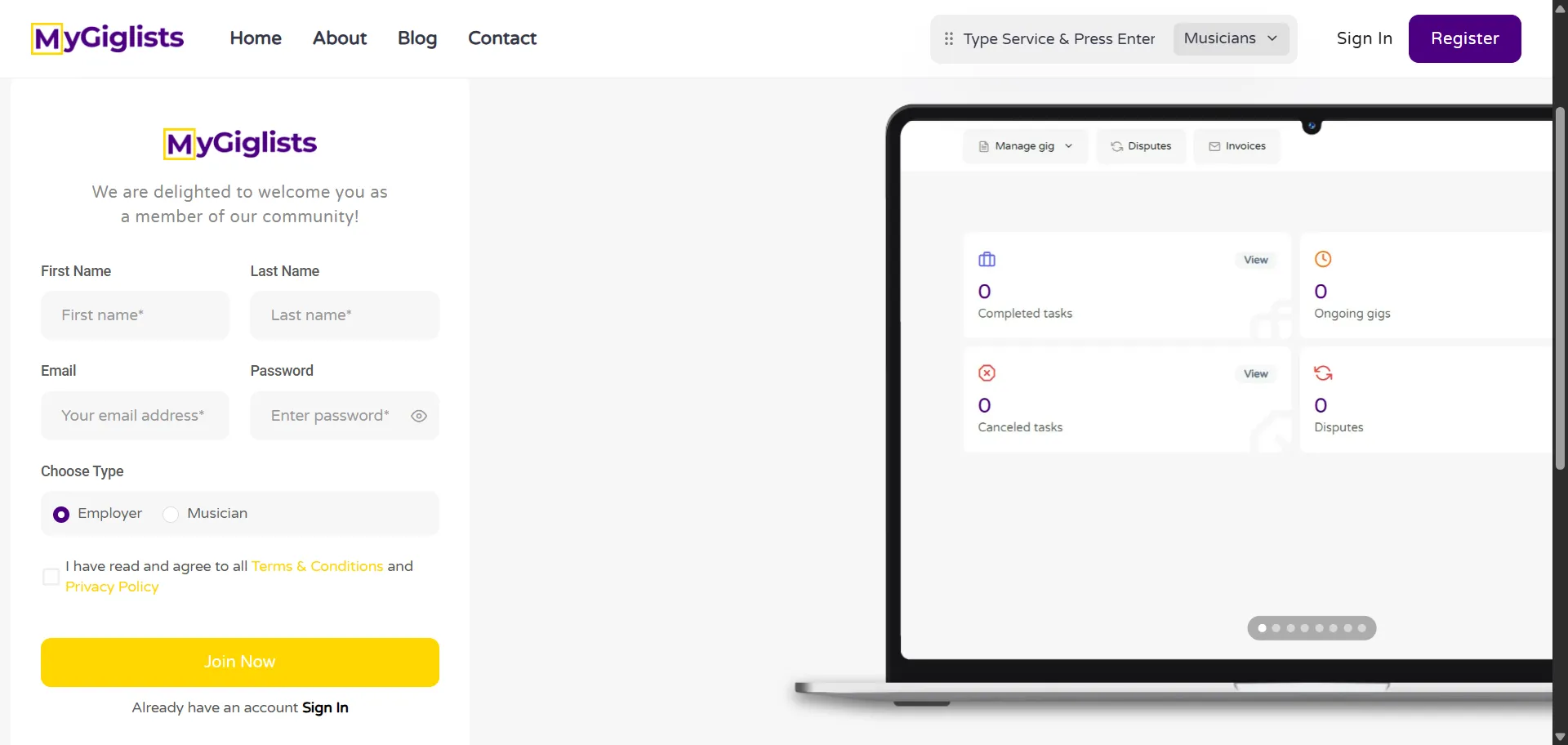
Ensure the Musician checkbox is checked when trying to register
2. Verify
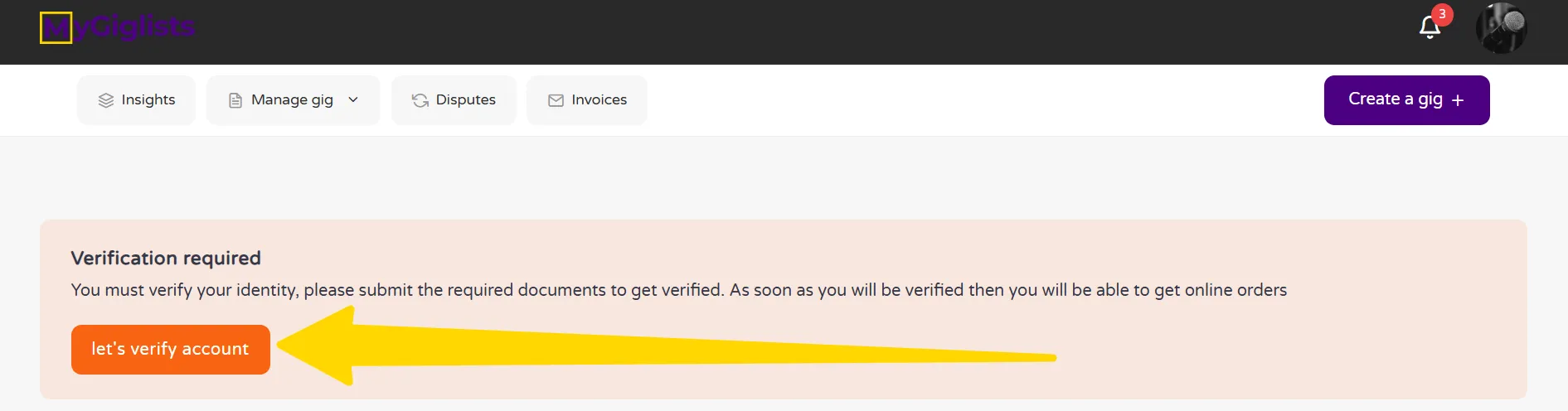
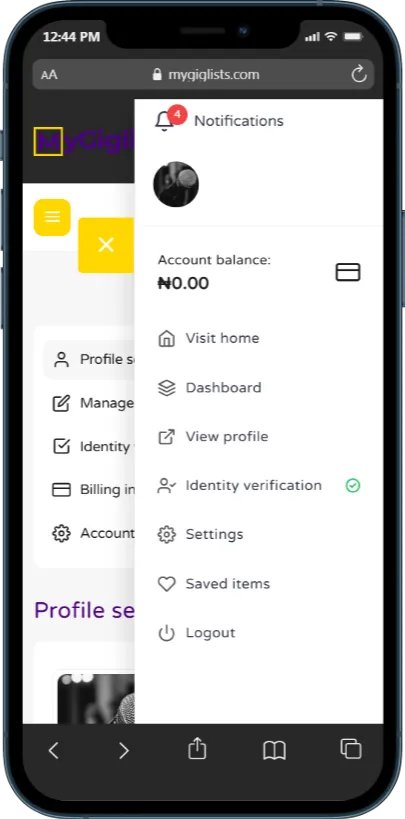
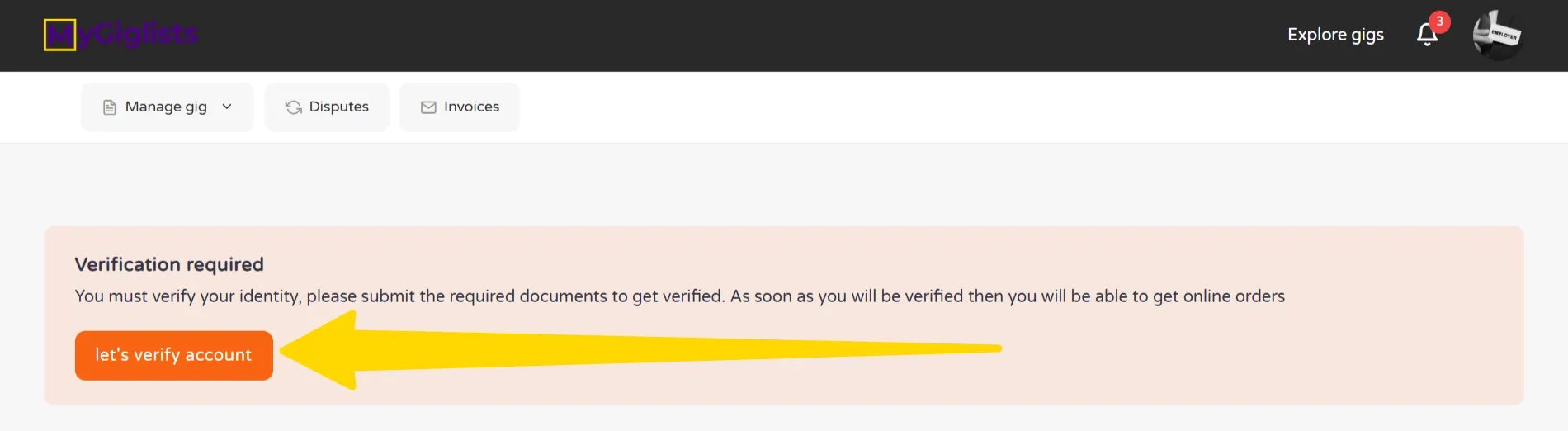
Verify your account in order for you to add gigs and be visible to clients/employers
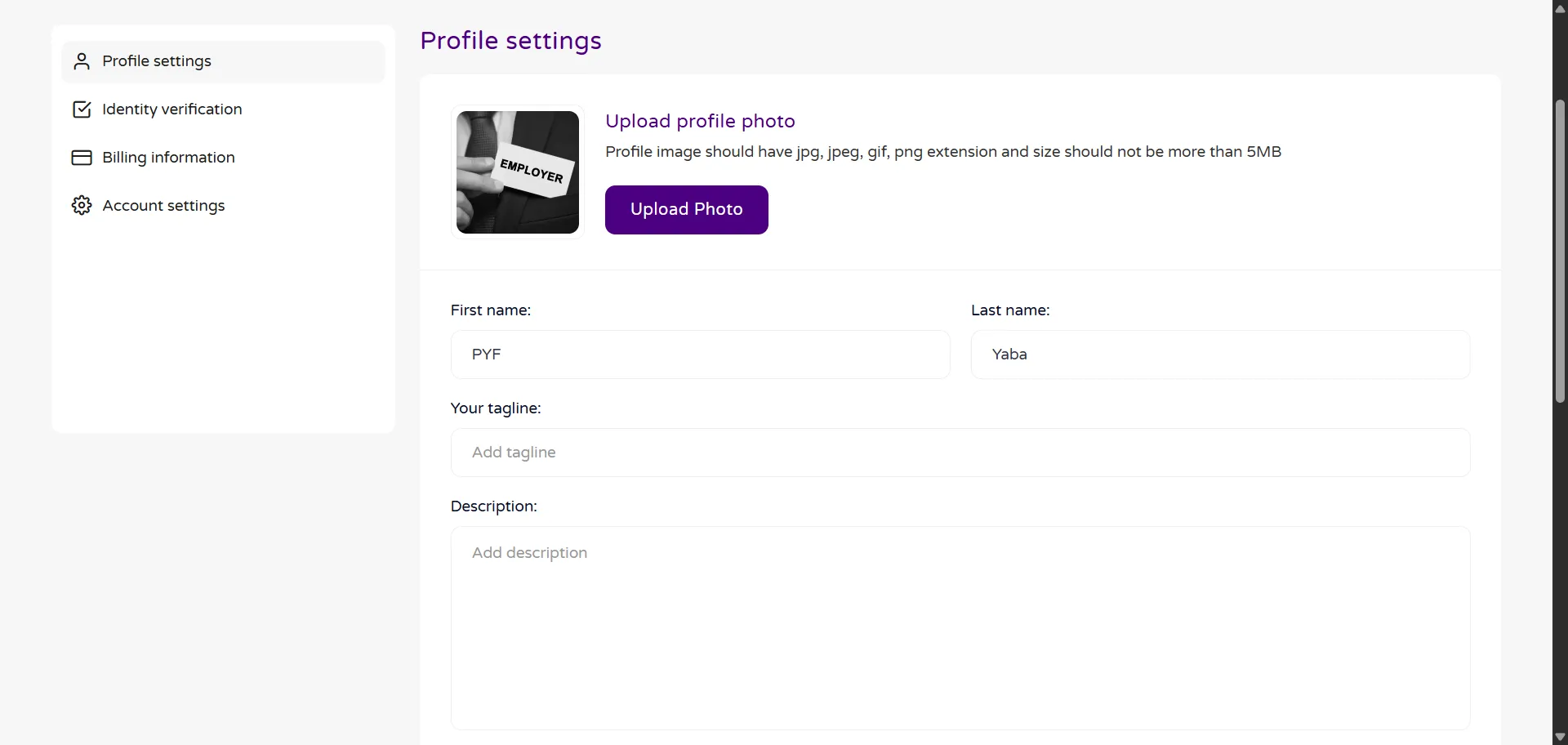
3. Profile settings
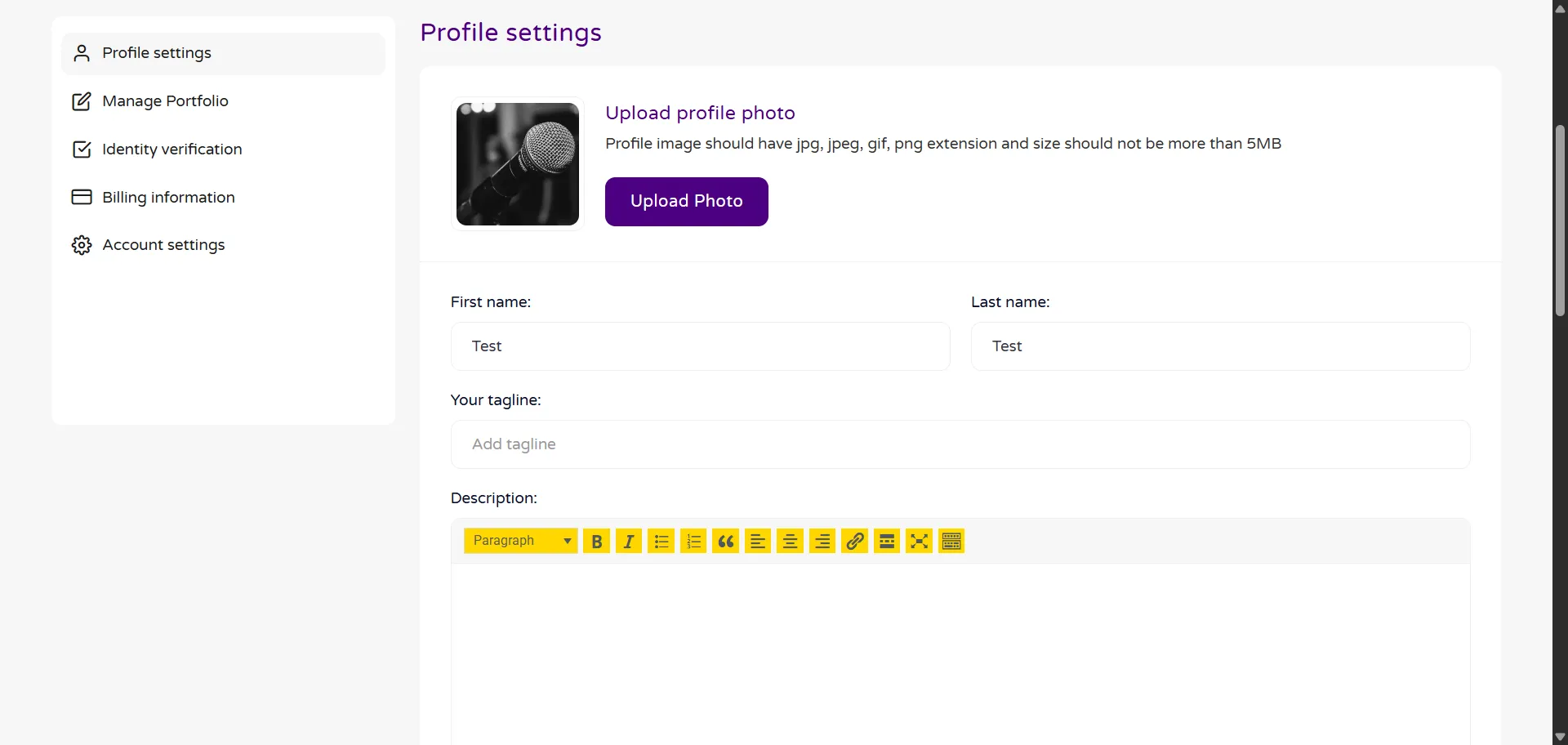
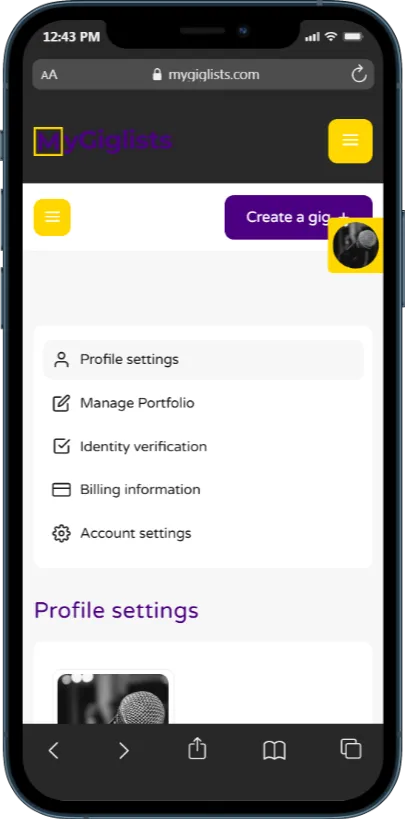
Fill in your details in the Profile settings
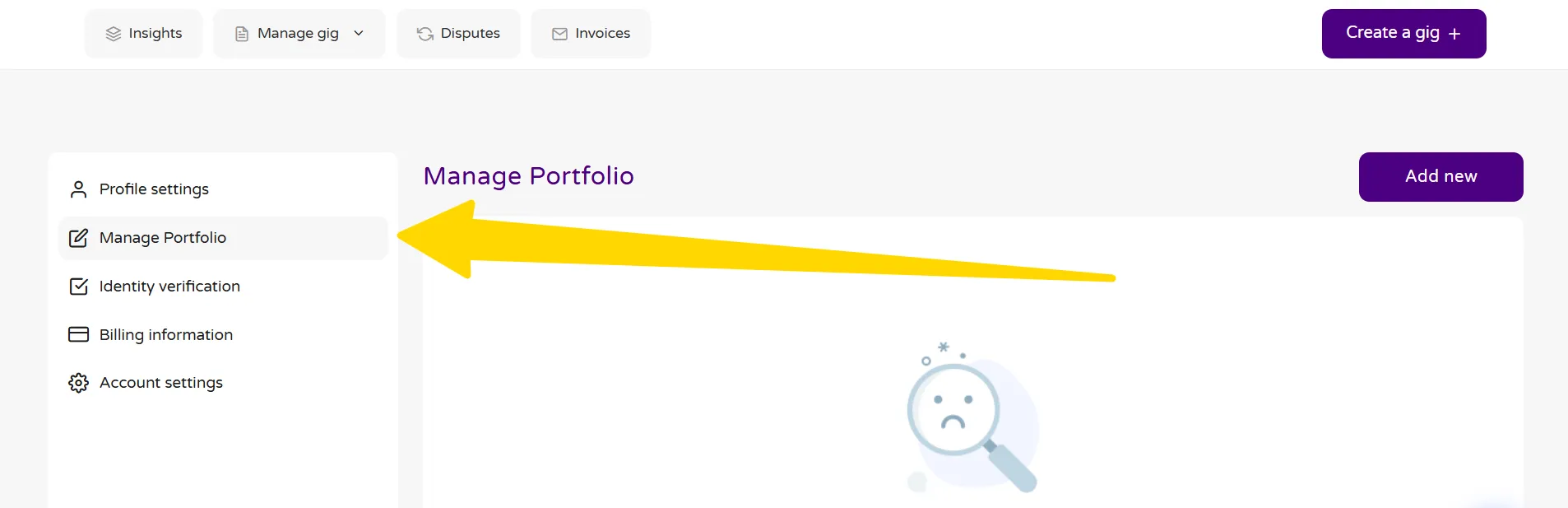
4. Add Portfolio
Click on the MANAGE PORTFOLIO button
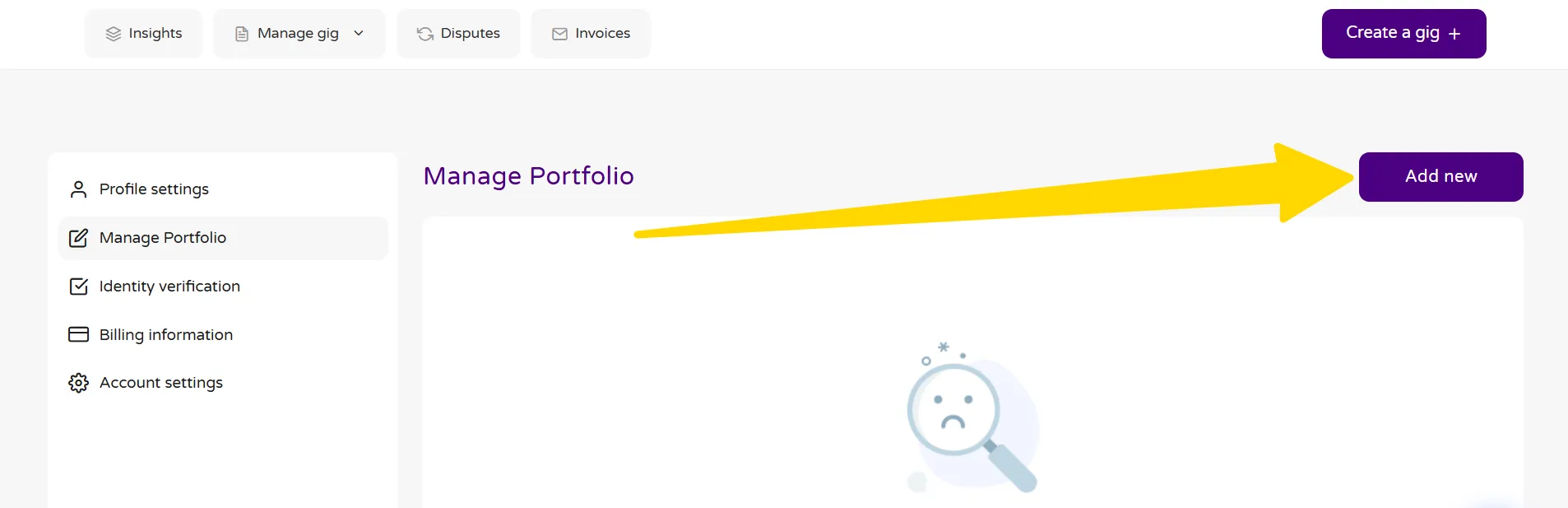
Click on the ADD NEW button
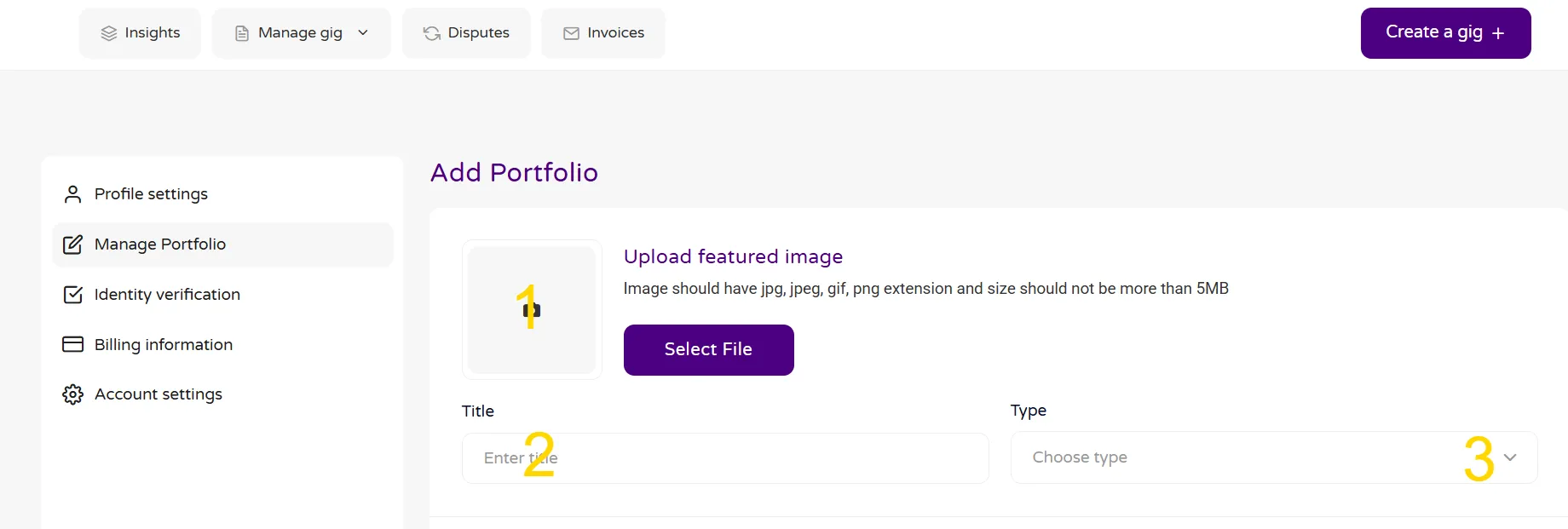
Fill in your details
Upload the image that will display for this portfolio
Add the Portfolio Title
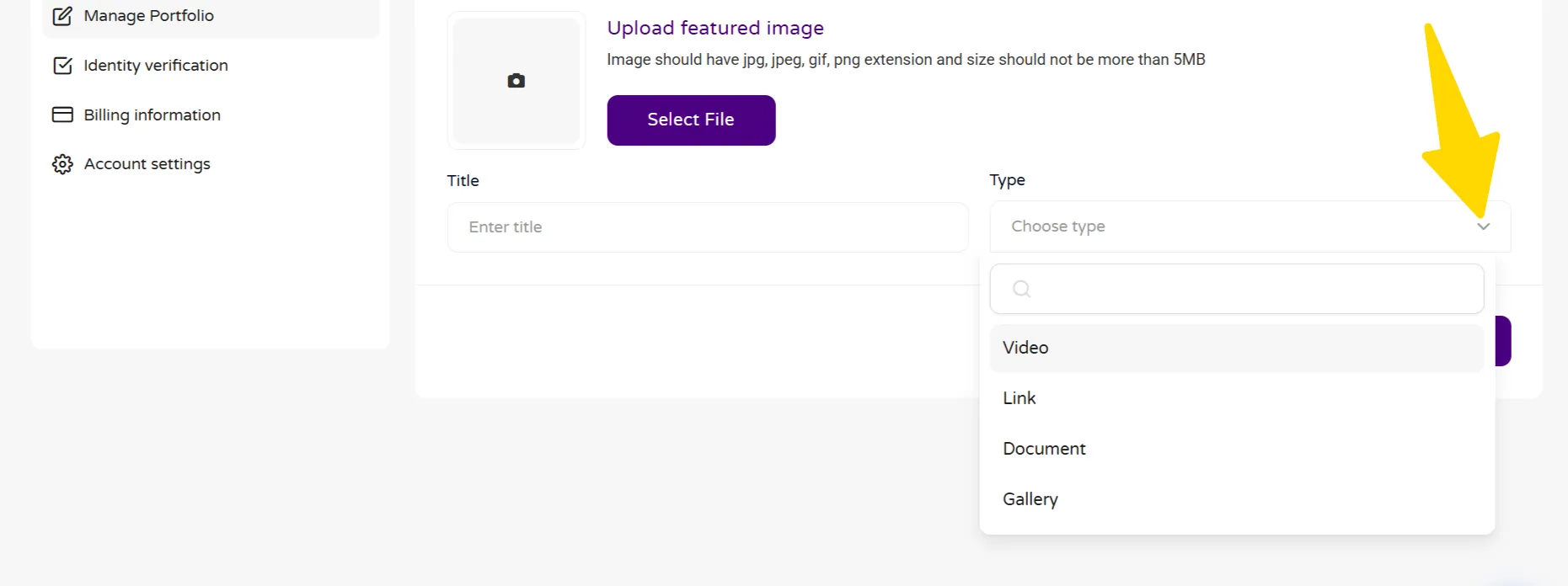
Select the Type of Portfolio. Add Youtube link of video, link to portfolio, upload document or upload gallery images
Click on the SAVE & UPDATE button
5. Bank Details
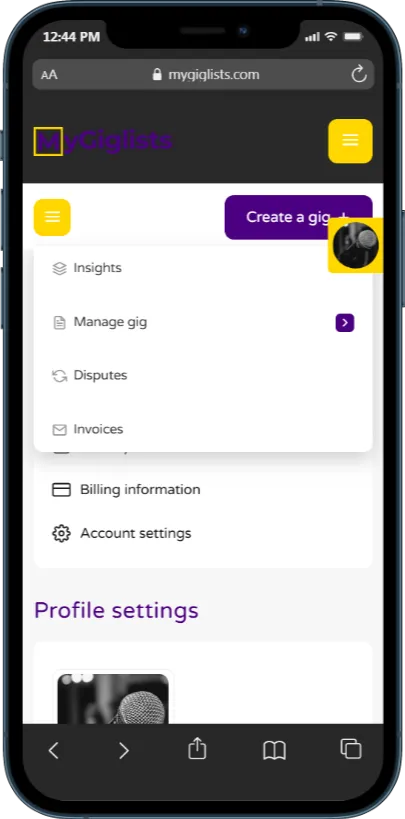
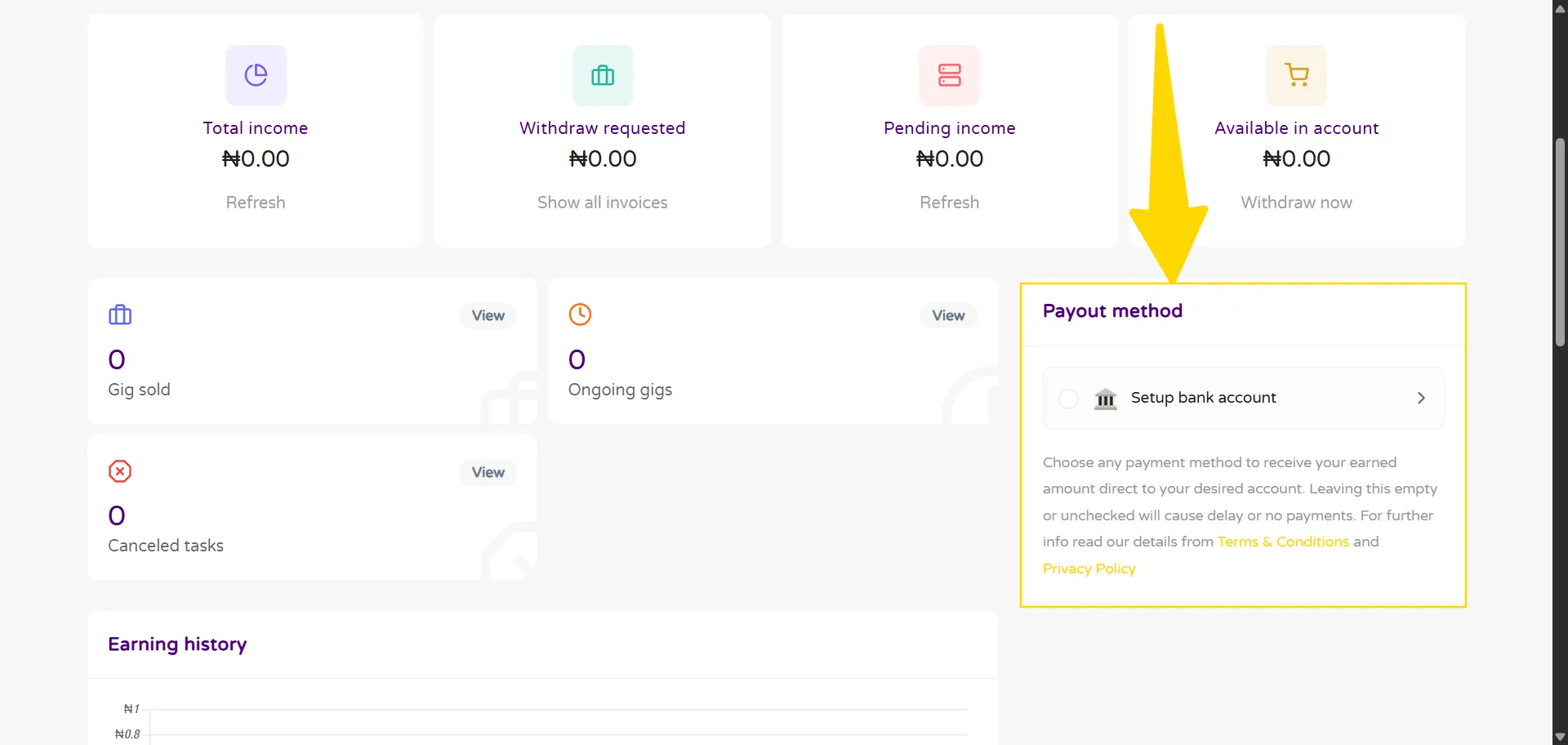
Naviagte to your dashboard by clicking on the INSIGHTS button and fill in your bank details
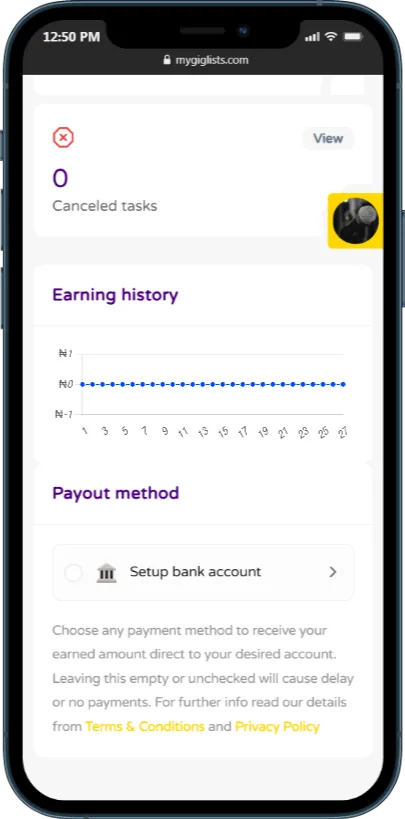
Fill in your bank details by clicking on the SETUP BANK ACCOUNT button
6. Add Gig
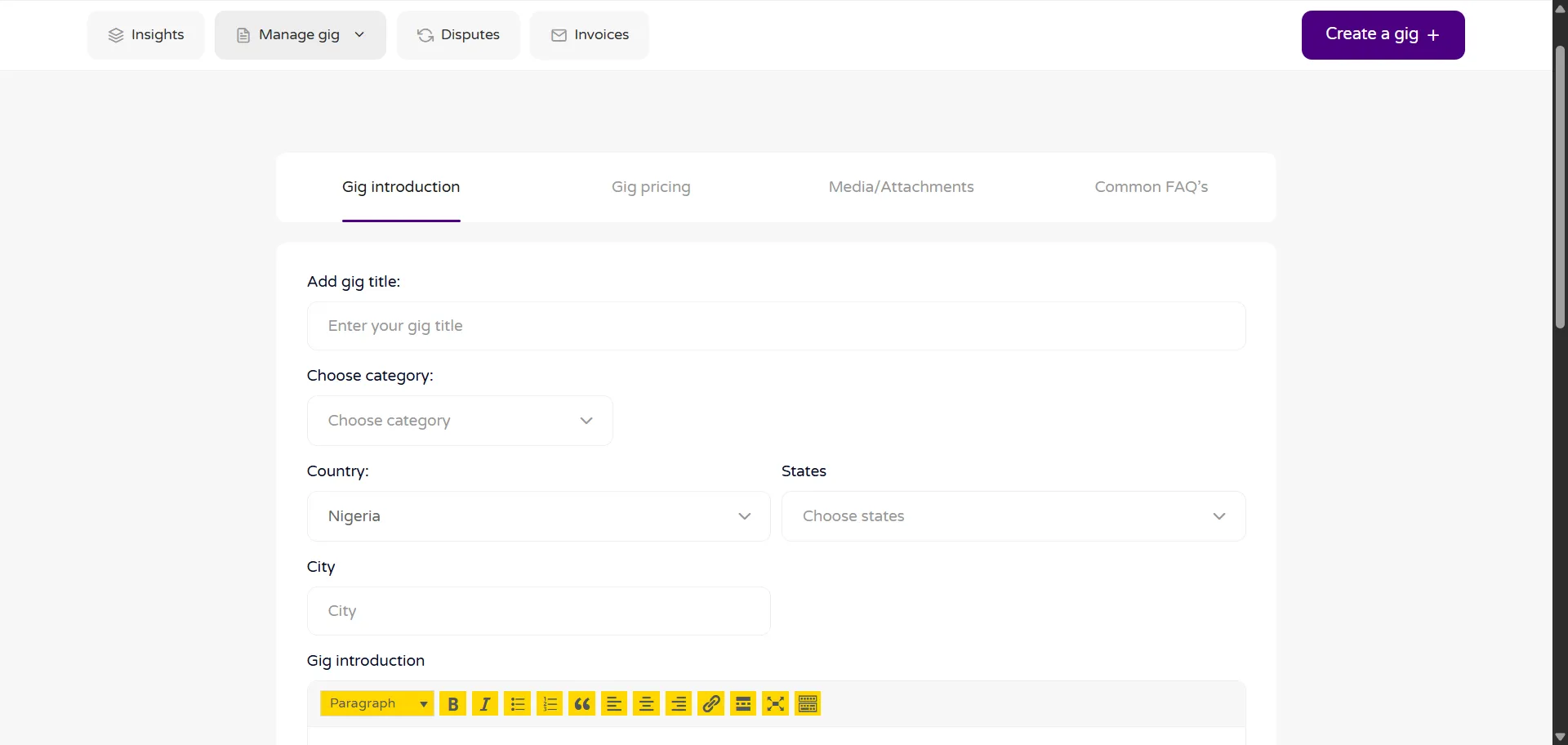
After your account has been approved you can add your gig by clicking on the CREATE A GIG button and filling in the gig details
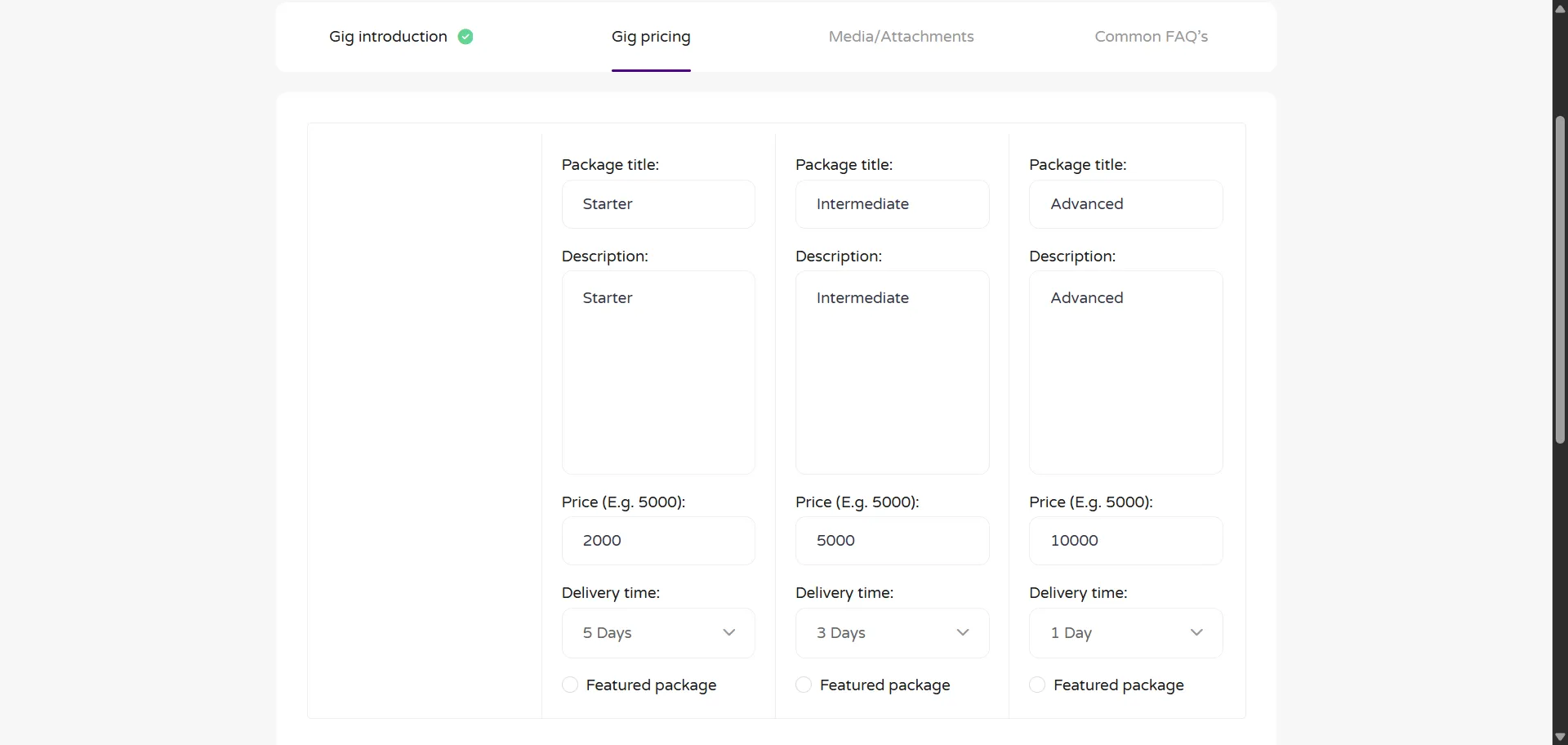
Next, you add the GIG PRICING details.
You can add 3 packages for your pricing to give clients/employers options to choose. E.g.:
Starter
Intermediate
Advanced
You can also select to feature any of the packages, so that it can stand out amongst the rest.
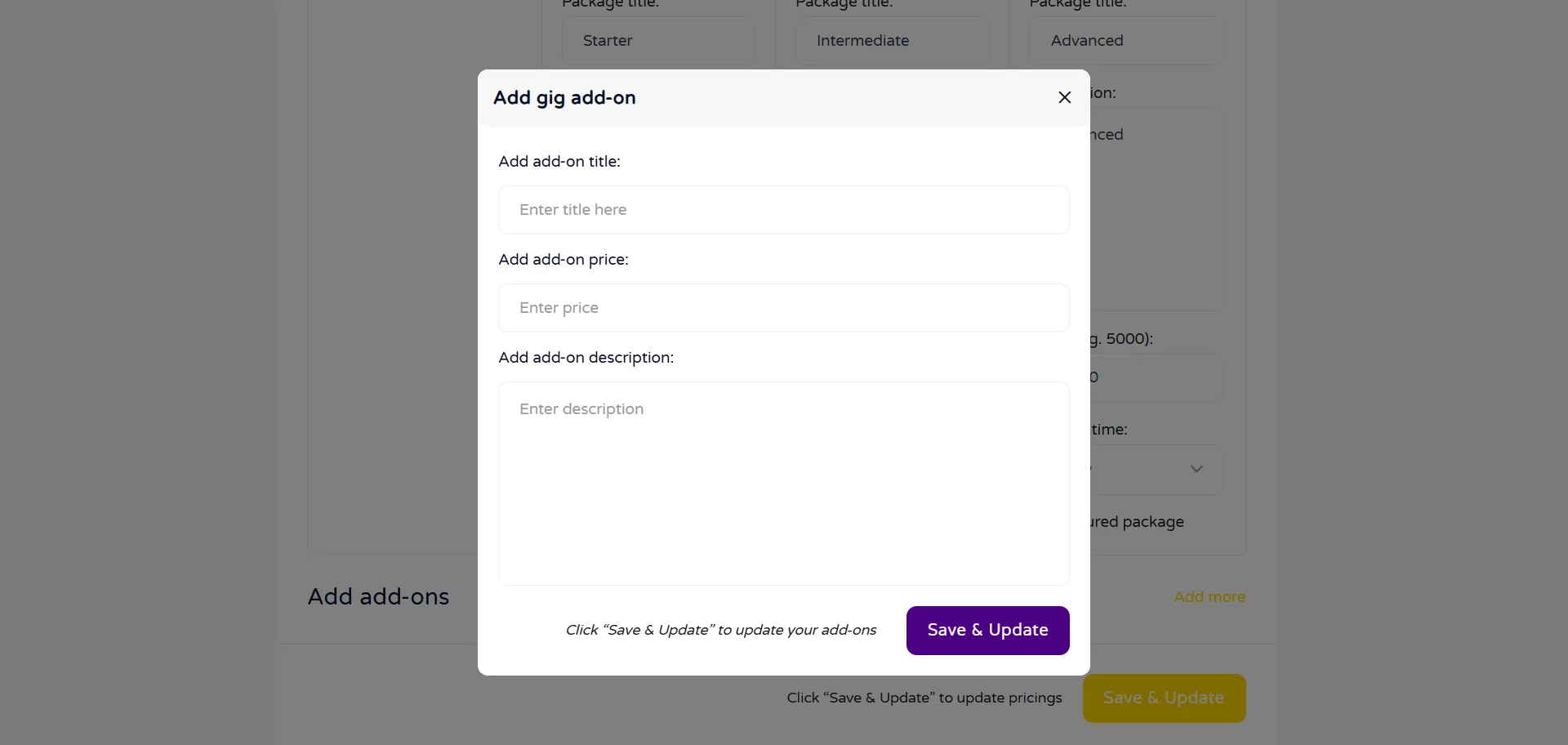
Lastly, you can ADD ADDONS that you think clients/employers may want that will go with the gig.
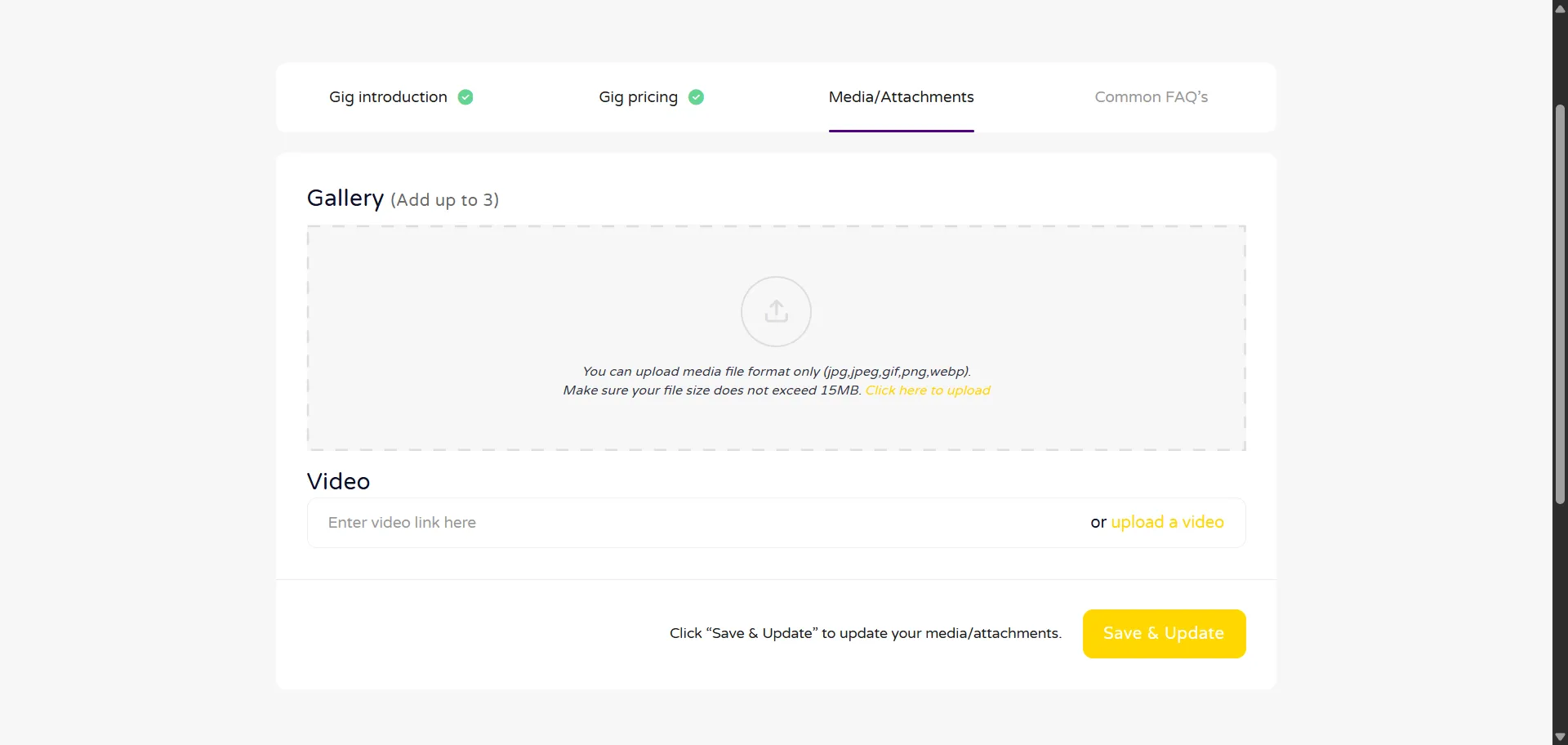
Next, you can add gig images and/or youtube video url of the gig. This is optional but it is recommended.
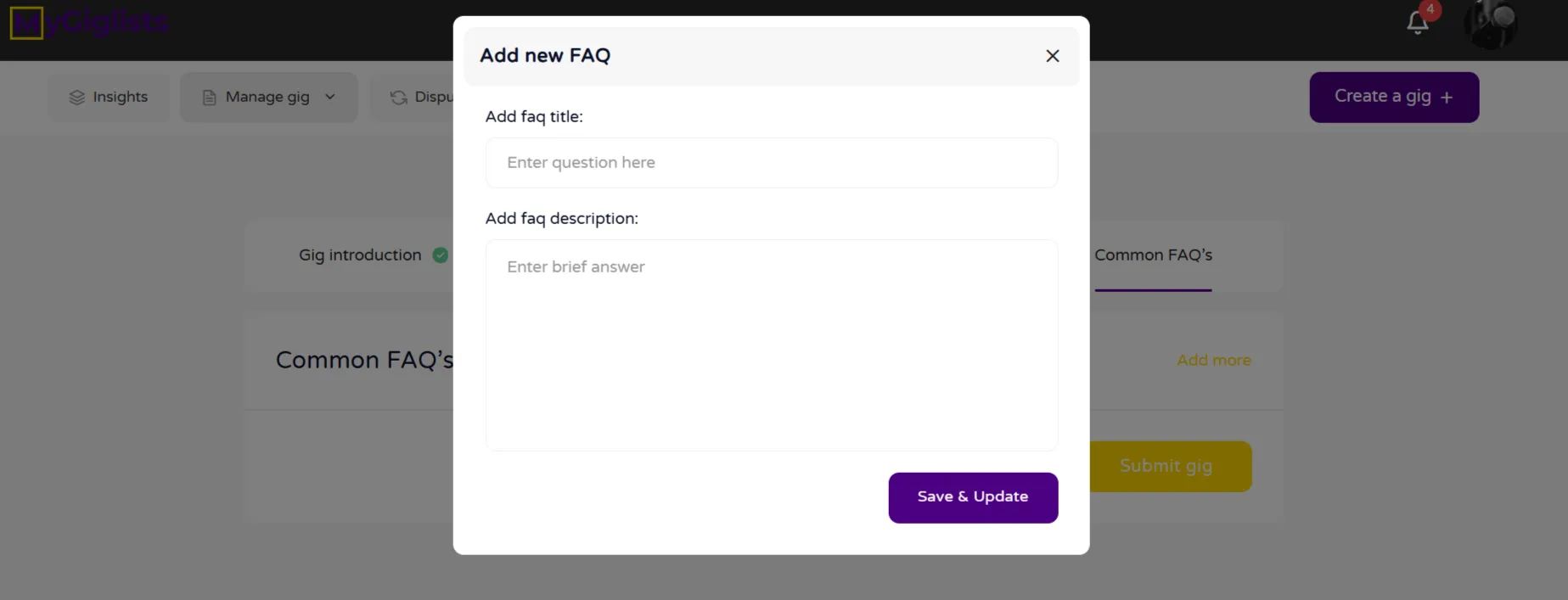
Next, you can add questions, by clicking on the ADD MORE button under the Common FAQ’s section to anticiate clients/employers will want to ask.
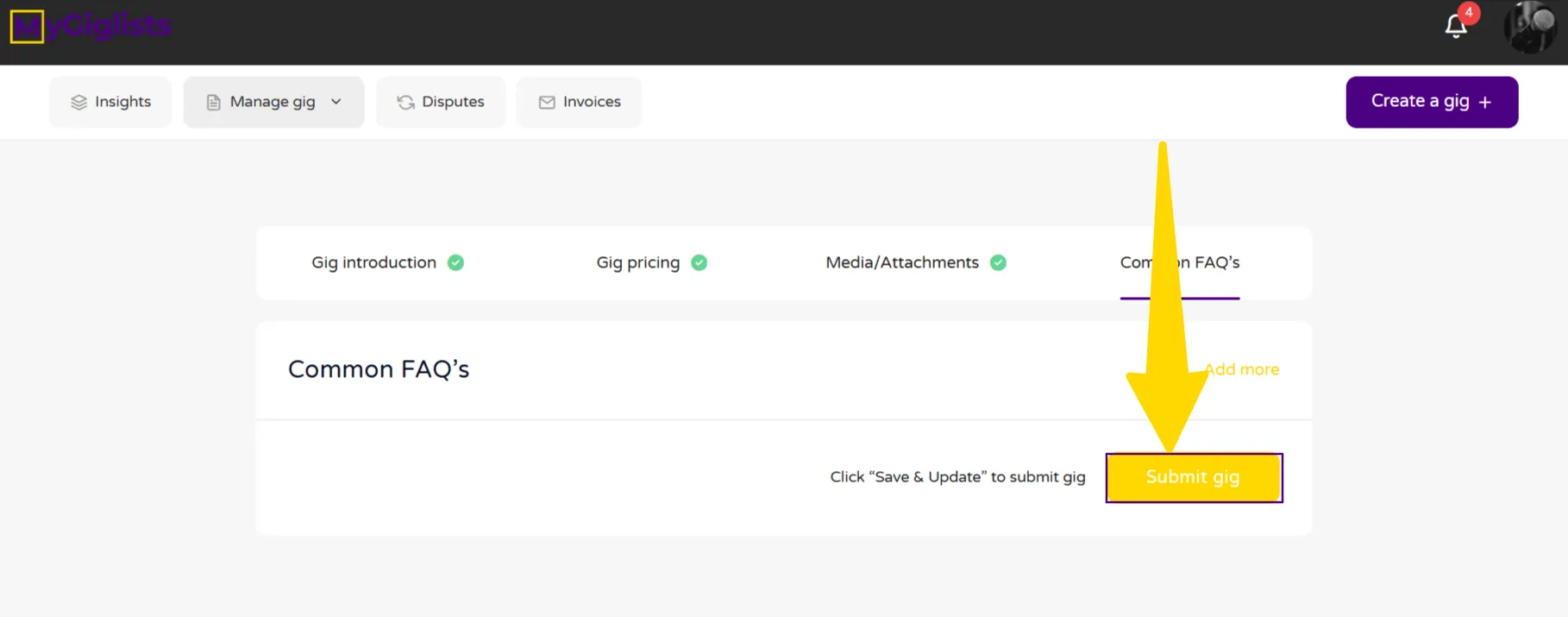
Lastly, you click on the SUBMIT GIG button.
The Admin will review the gig to confirm it is in line with the policy and approve, accordingly.
1. Register
Ensure the Client/Employer checkbox is checked when trying to register
2. Verify
Verify your account in order to book gigs
3. Profile settings
Fill in your details in the Profile settings
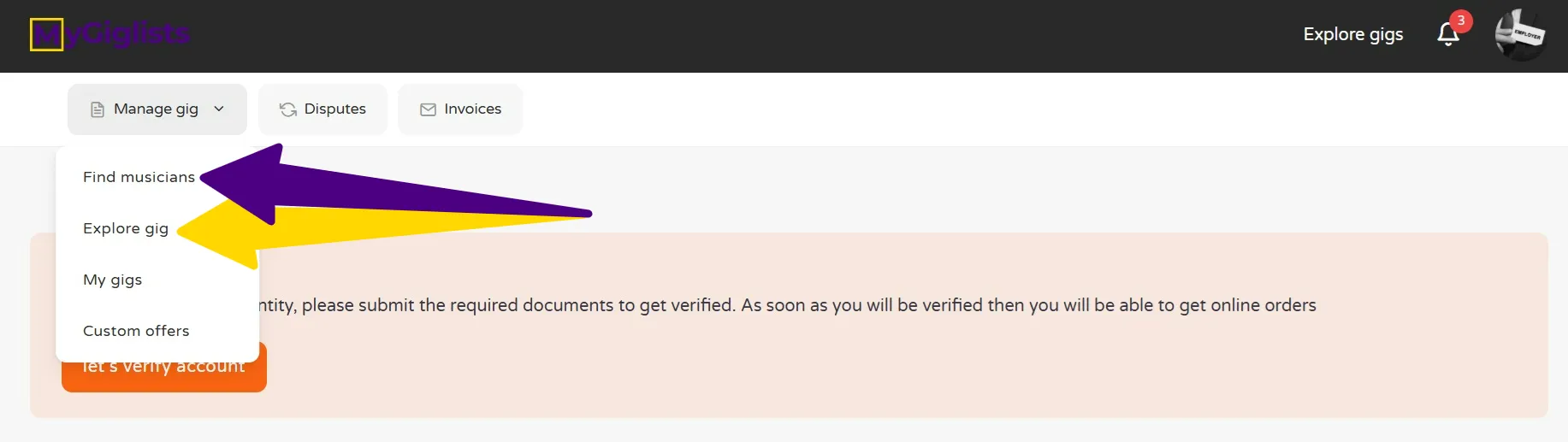
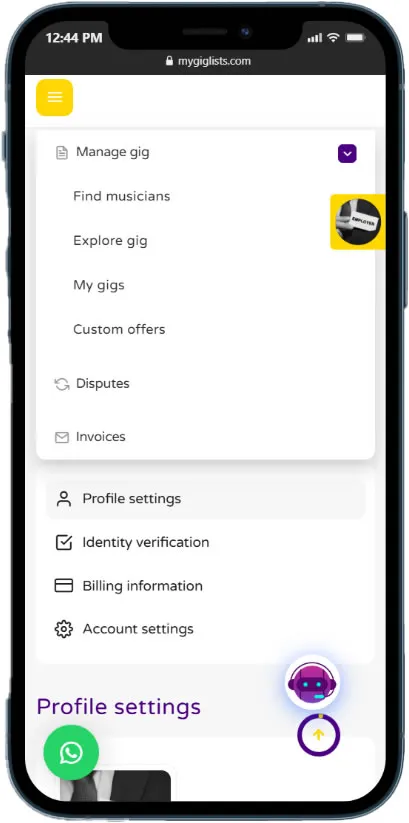
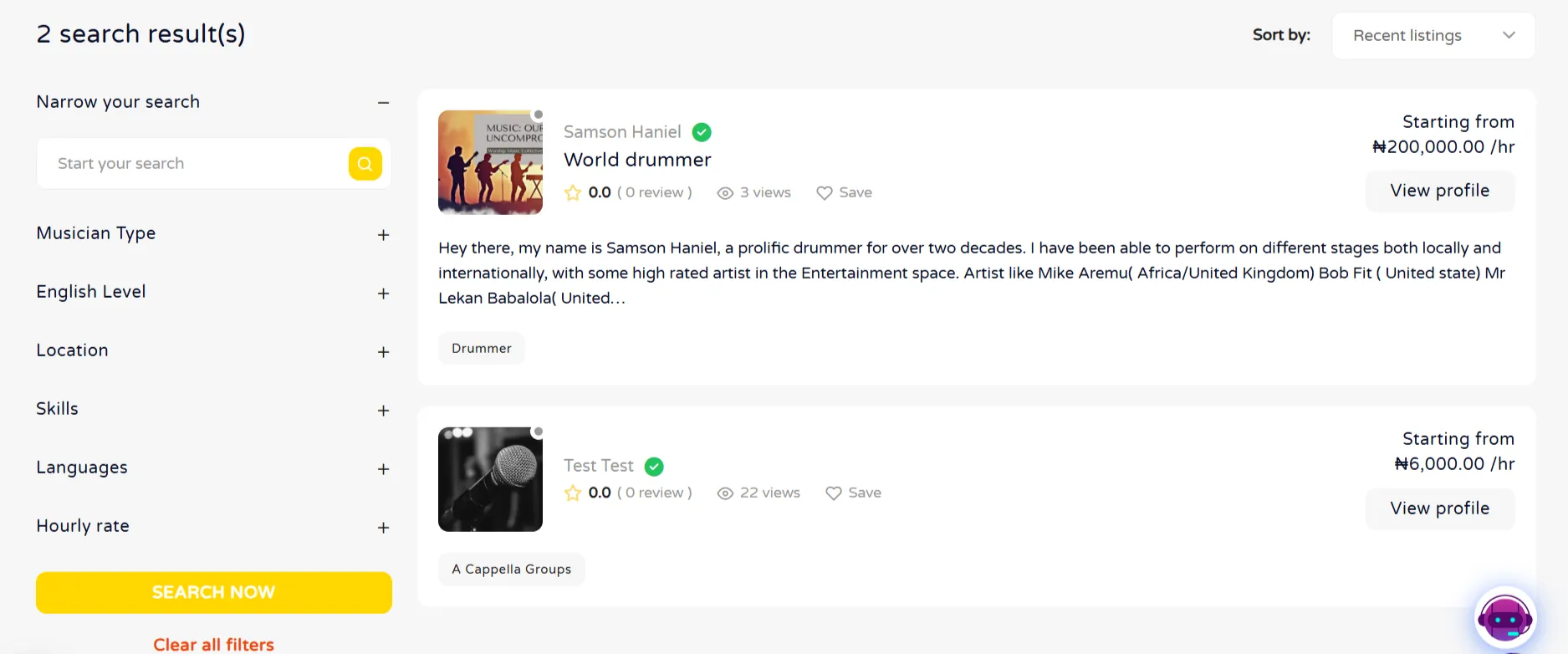
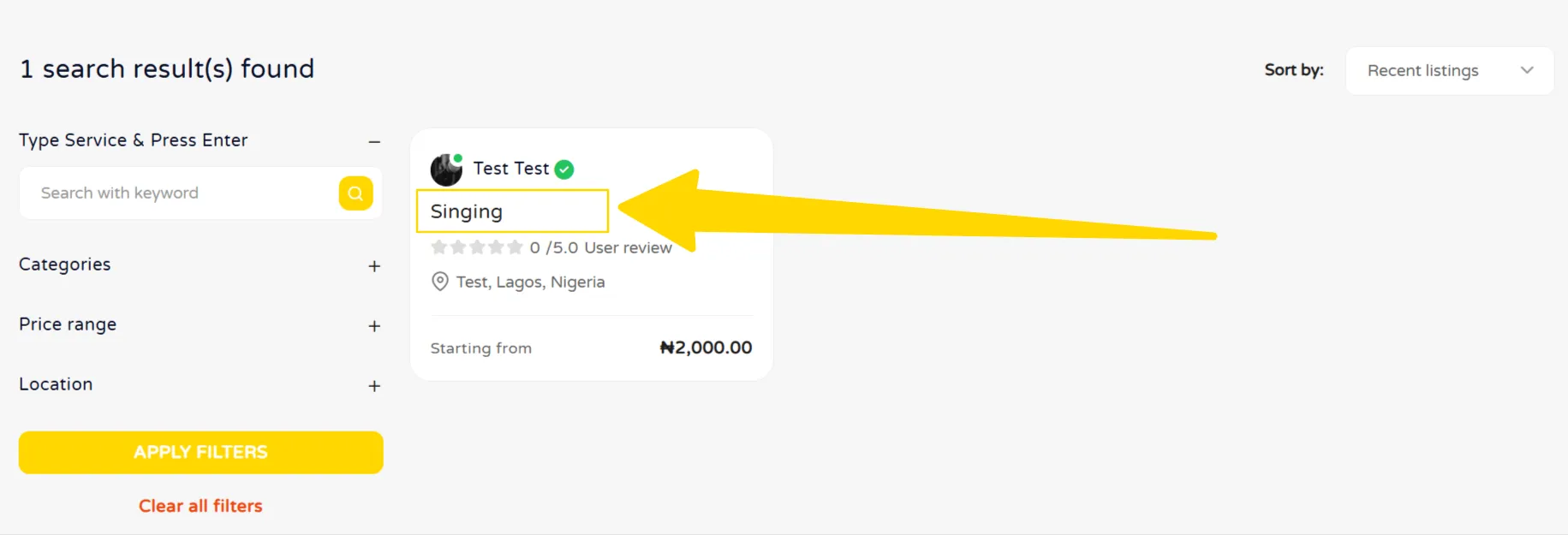
4. View Gigs/Musicians
You can view gigs or musicians by clicking on the INSIGHTS menu
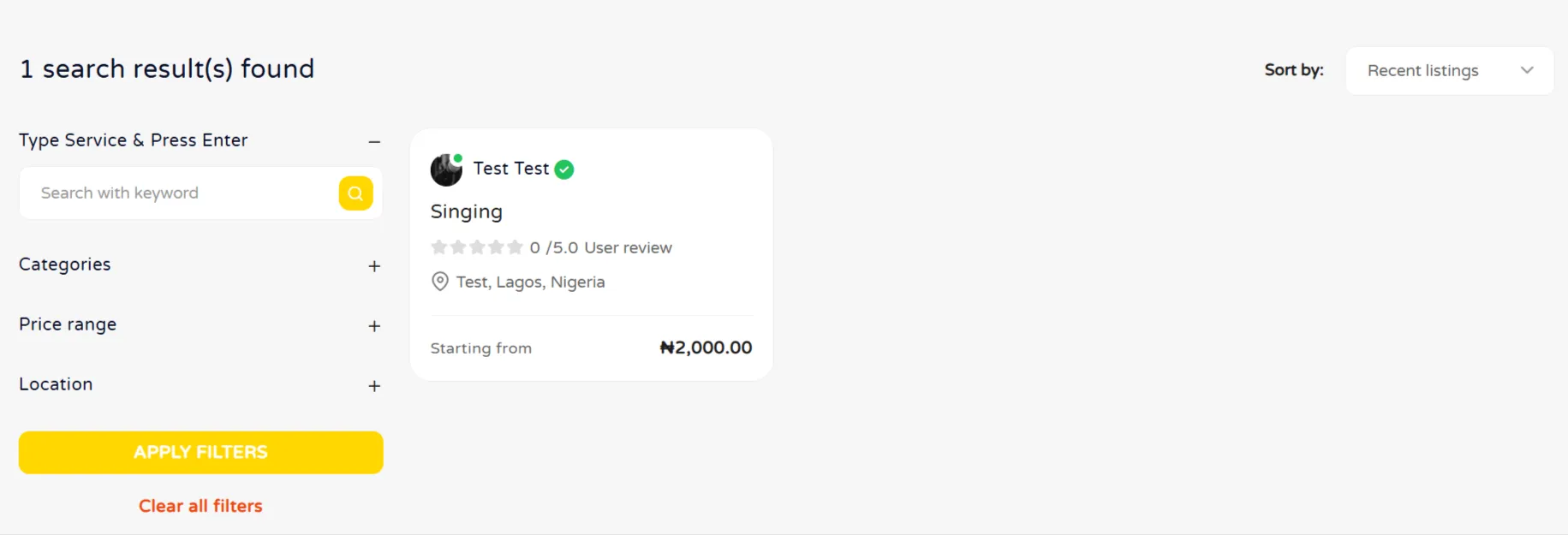
SEARCH GIGS
SEARCH MUSICIANS
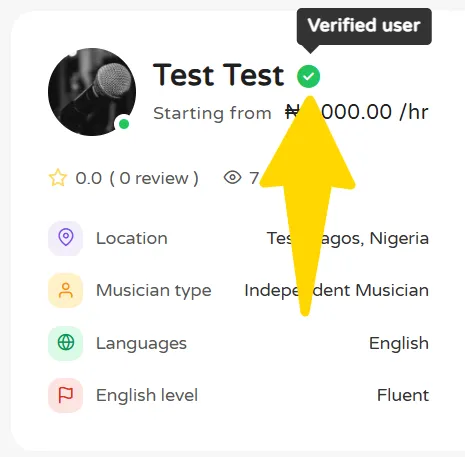
You can see a verified mark beside the name of the musician to confirm that the musician has been verified by the admin, by submitting relevant documents.
5. Book Gig
After going through the different gigs, you can book any of them by clicking on the GIG NAME
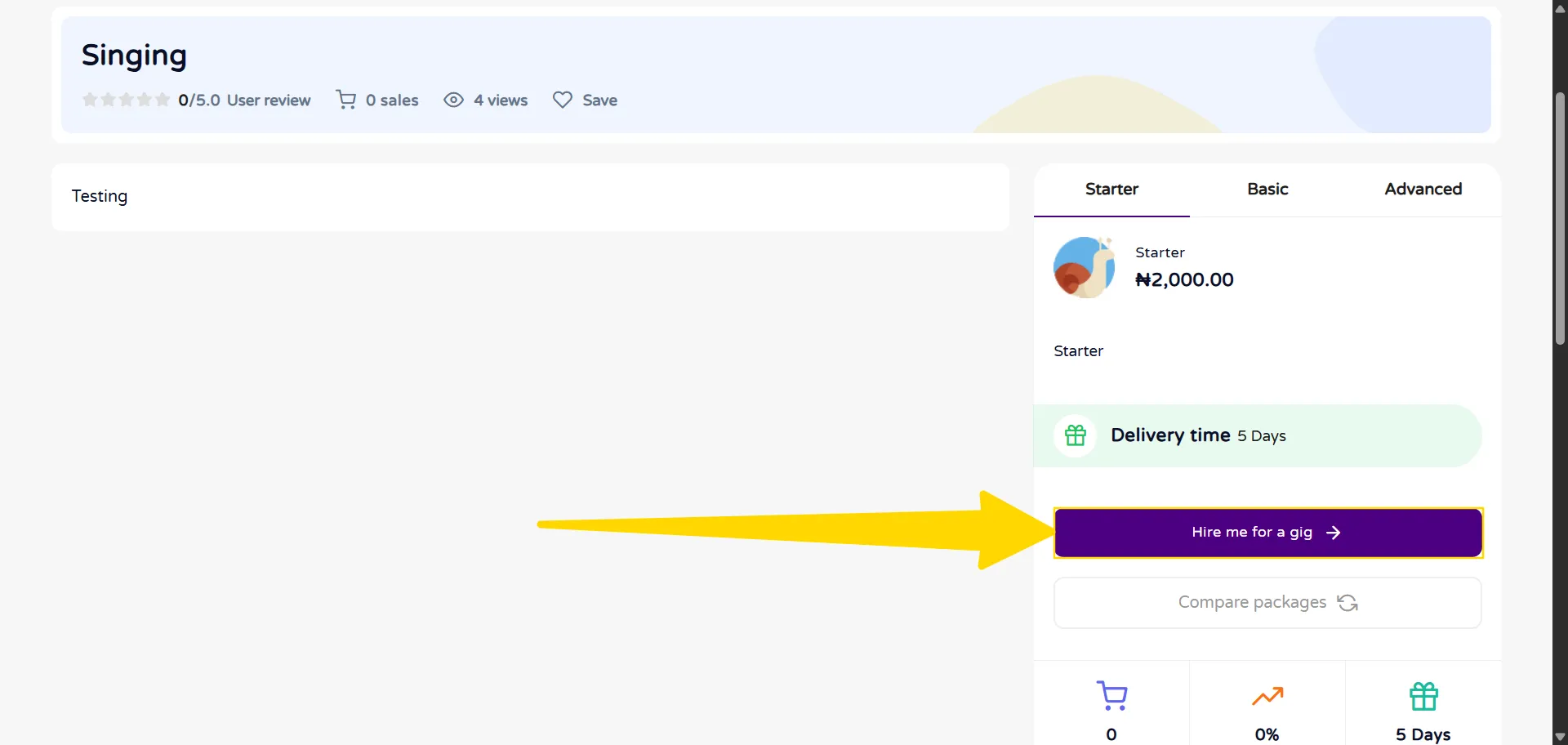
If satisified, after going through the gig details, click on the HIRE ME FOR A GIG button
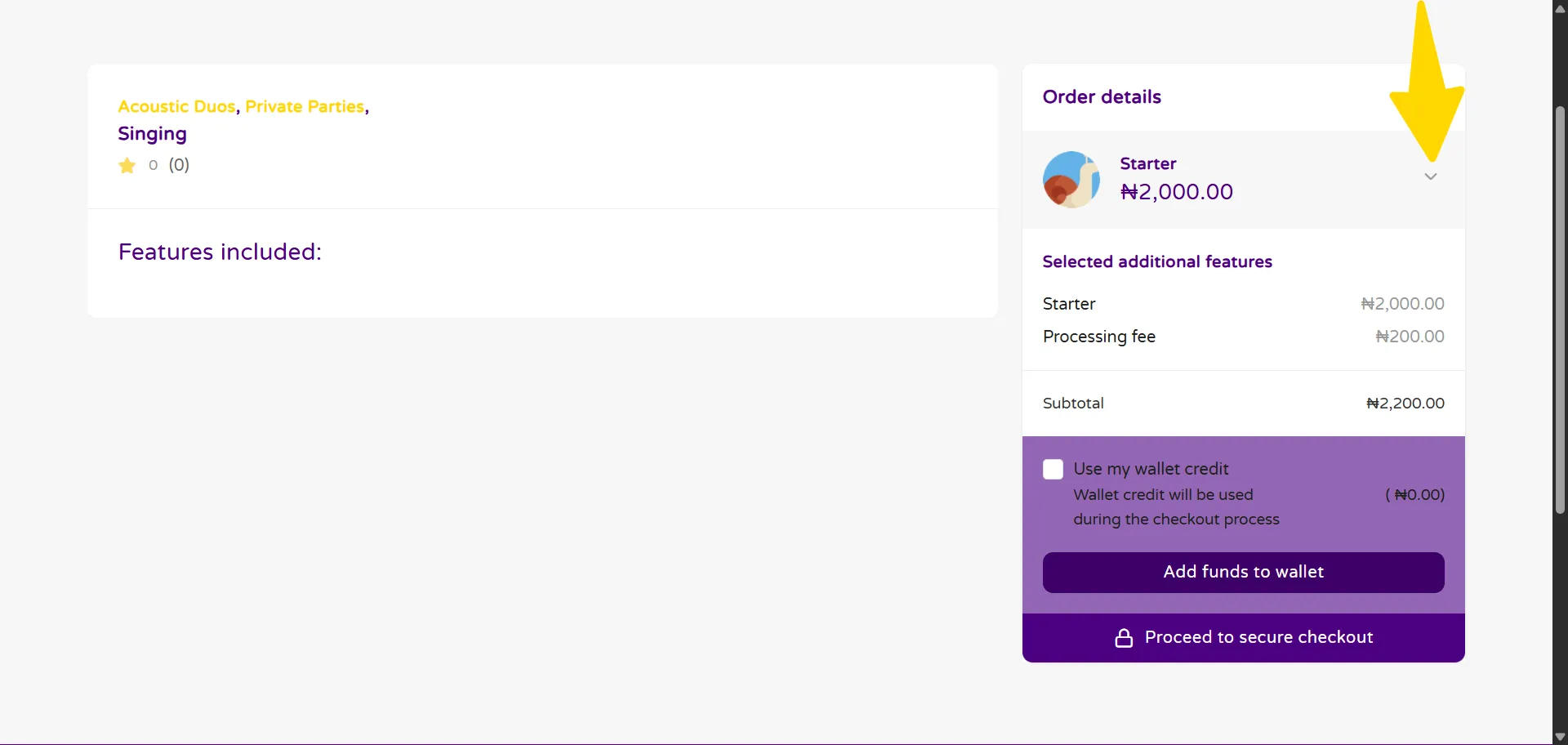
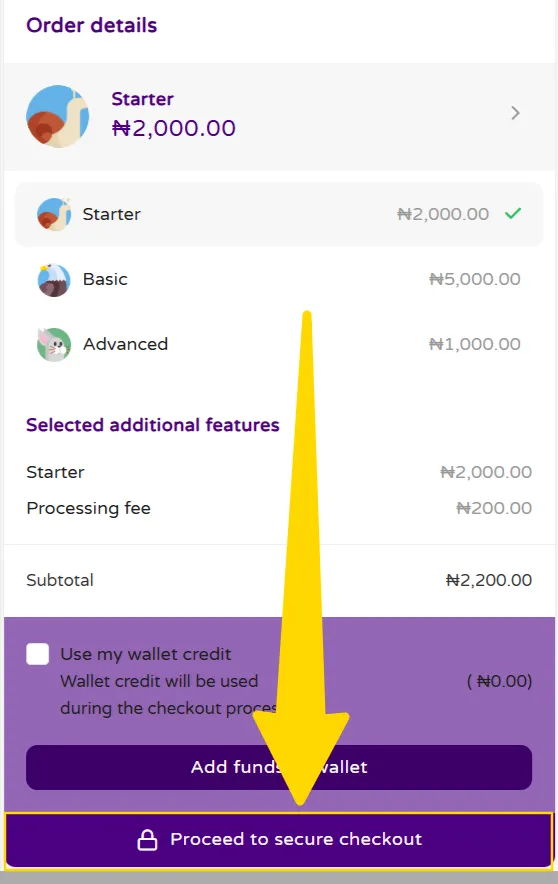
Choose the package you want by clicking on the DROPDOWN ARROW beside the package and then click on the PROCEED TO SECURE CHECKOUT button
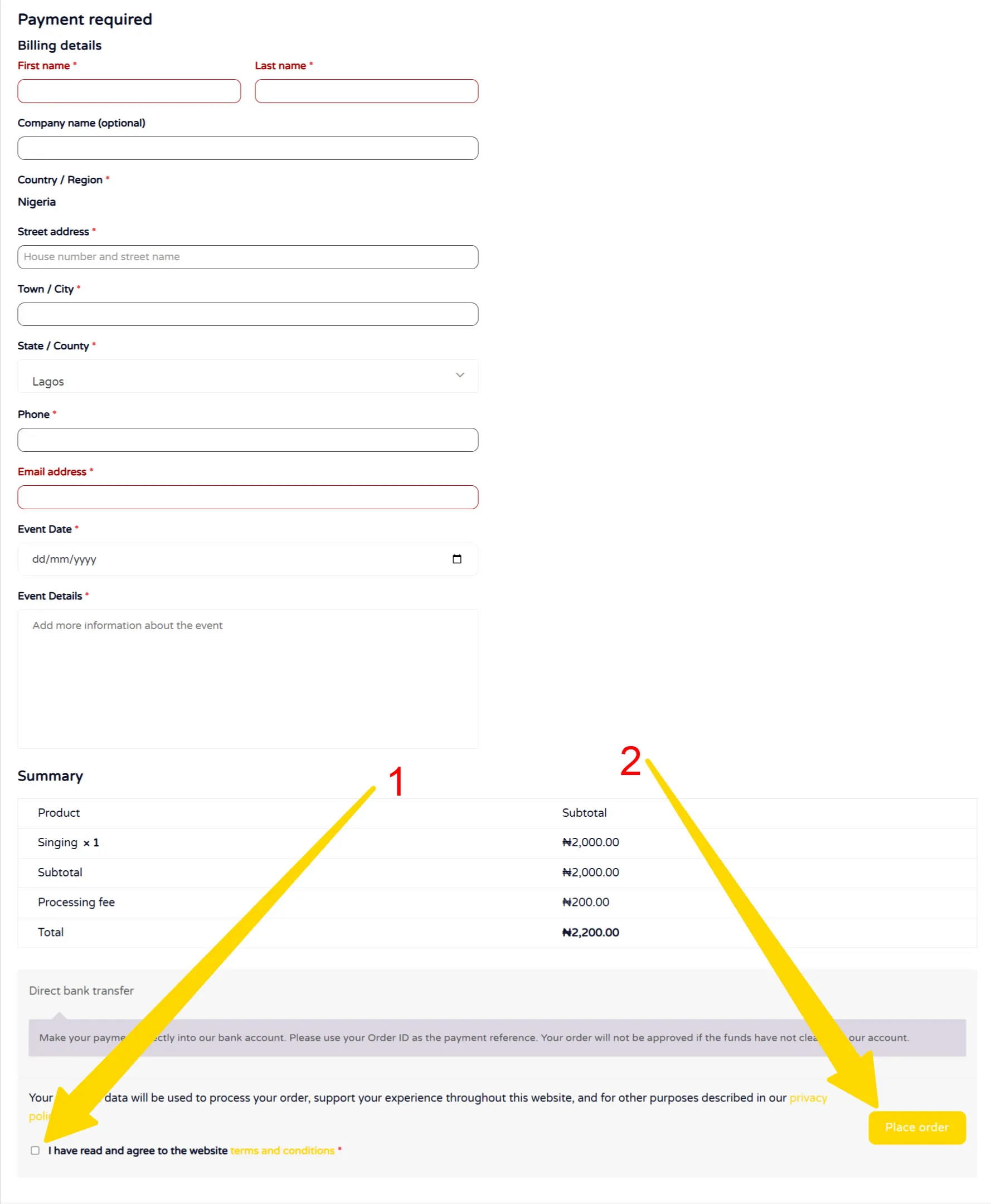
Fill in your details, ensuring that the required fields, indicated with the red asterisk, are filled.
Select the I have read and agree to the website terms and conditions checkbox
Click on the PLACE ORDER button
Pay for the gig using any of your preferred payment options.
If you pay via bank transfer, kindly send an email to booking@mygiglists.com for confirmation
Add credit to your wallet
*You will be redirected to the checkout page to add your billing details.